
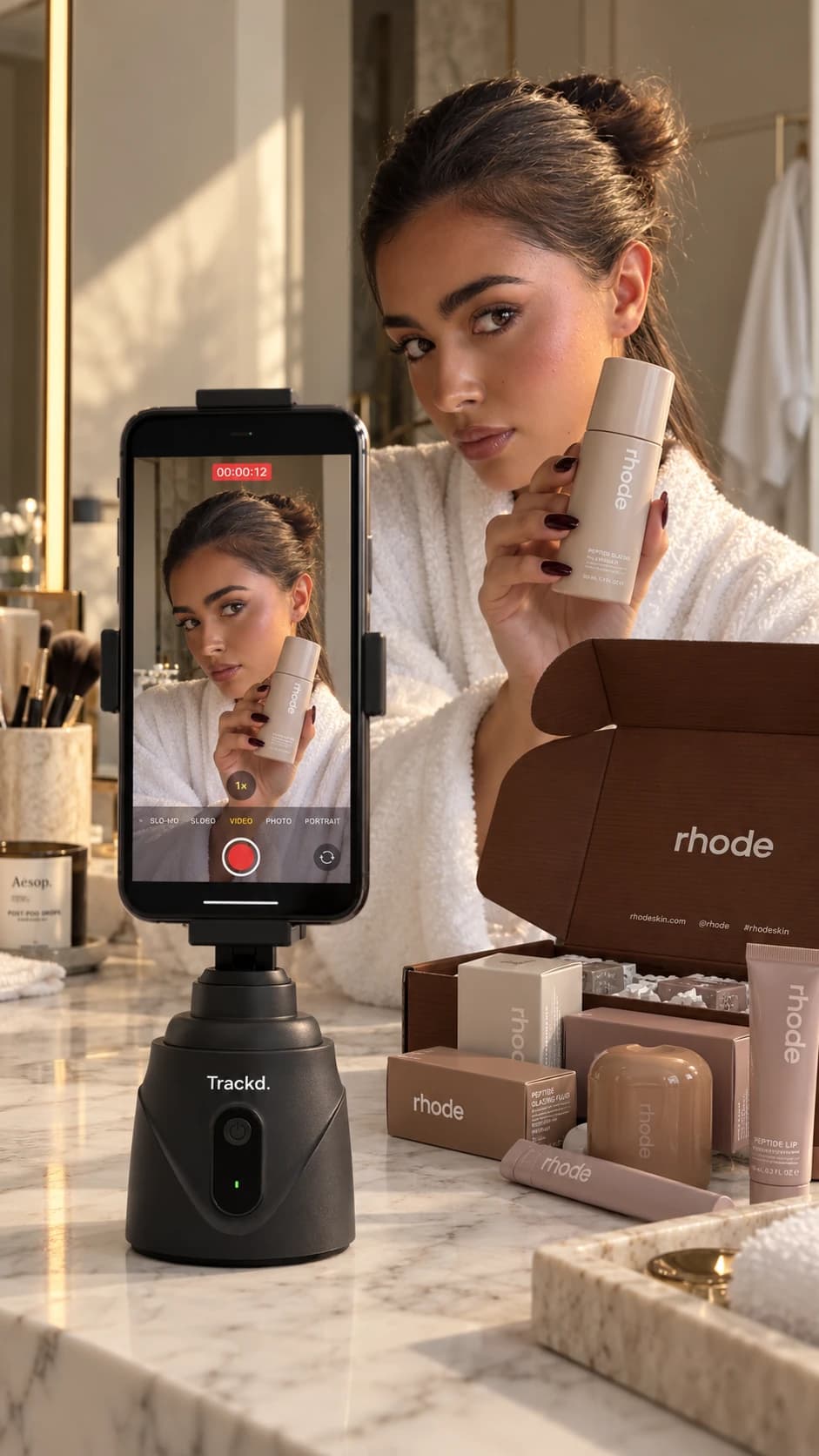
Start with the shot, then choose the support
For a seated introduction or a product close-up, lock off the phone and arrange the scene inside the frame. Moving the camera is not always helpful: a steady close-up lets viewers see the detail.
For a standing demonstration, rehearse your movement before recording. Leave room above your head and around your hands. Keep the support on a stable surface where you will not bump it.
Check light, sound and framing before a full take
Face a window or a consistent light source and check the phone preview for bright windows behind you. Make a short test while speaking at the same volume and distance you will use in the real take.
Play the test back with sound. Check that your face, hands and demonstrated object remain visible at the widest point of your movement. If speech is hard to hear, reduce background noise or bring the recording setup closer.
How to make your iPhone camera follow you with Trackd
Use an iPhone 12 or newer with iOS 17.6 or later and the free Trackd app. Place the Trackd Mount on a stable tabletop or compatible tripod, attach your iPhone and connect the mount in the app. The mount turns and tilts while your iPhone records; the phone supplies the camera, microphone and storage.
- Open Record and choose Solo Lock.
- Choose Raise Both Palms for a hands-free start, or Select Subject to select a person on screen and start manually.
- Keep your upper body clearly visible. For a palms start, wait for the lock confirmation, mount nod and moving recording timer before beginning your take.
- Make a short test through the movement you plan to use, then review the saved framing and sound before filming the full video.
Keep yourself visible to the camera and rehearse a small movement before starting the full recording. The mount stays in one location: it does not travel through rooms or see through obstructions. Solo Lock follows you, not the object you are holding.
Record in manageable takes and review the result
Record one idea or demonstration at a time. Pause to check focus, sound and framing when you change position or move the support.
Review the saved recording and export the footage you want to share. For Instagram or TikTok, film in Trackd first and import the exported video into your chosen editing or social app. Trackd tracking does not run inside those apps.
Setup instructions and related filming guides
Frequently asked questions
Can my iPhone camera follow me automatically?
A compatible motorised tracking mount can turn the iPhone to follow you. With Trackd, pair the mount in the app and use Solo Lock to select one person. The mount stays in place and needs a clear view. The Trackd app provides tracking and recording; it does not add tracking inside other camera or social apps.
Do I need an automatic tracking mount to film myself?
No. A fixed tripod is suitable when your subject stays in frame. A motorised tracking mount can help when one person moves around a visible filming area.
Can Trackd follow a product or my hands?
Solo Lock follows one selected person. Record separate fixed close-ups when the product or hand detail is the main subject.
Explore hands-free creator filming
See how Trackd Solo Lock fits a one-person filming setup, including compatibility and tracking limits.